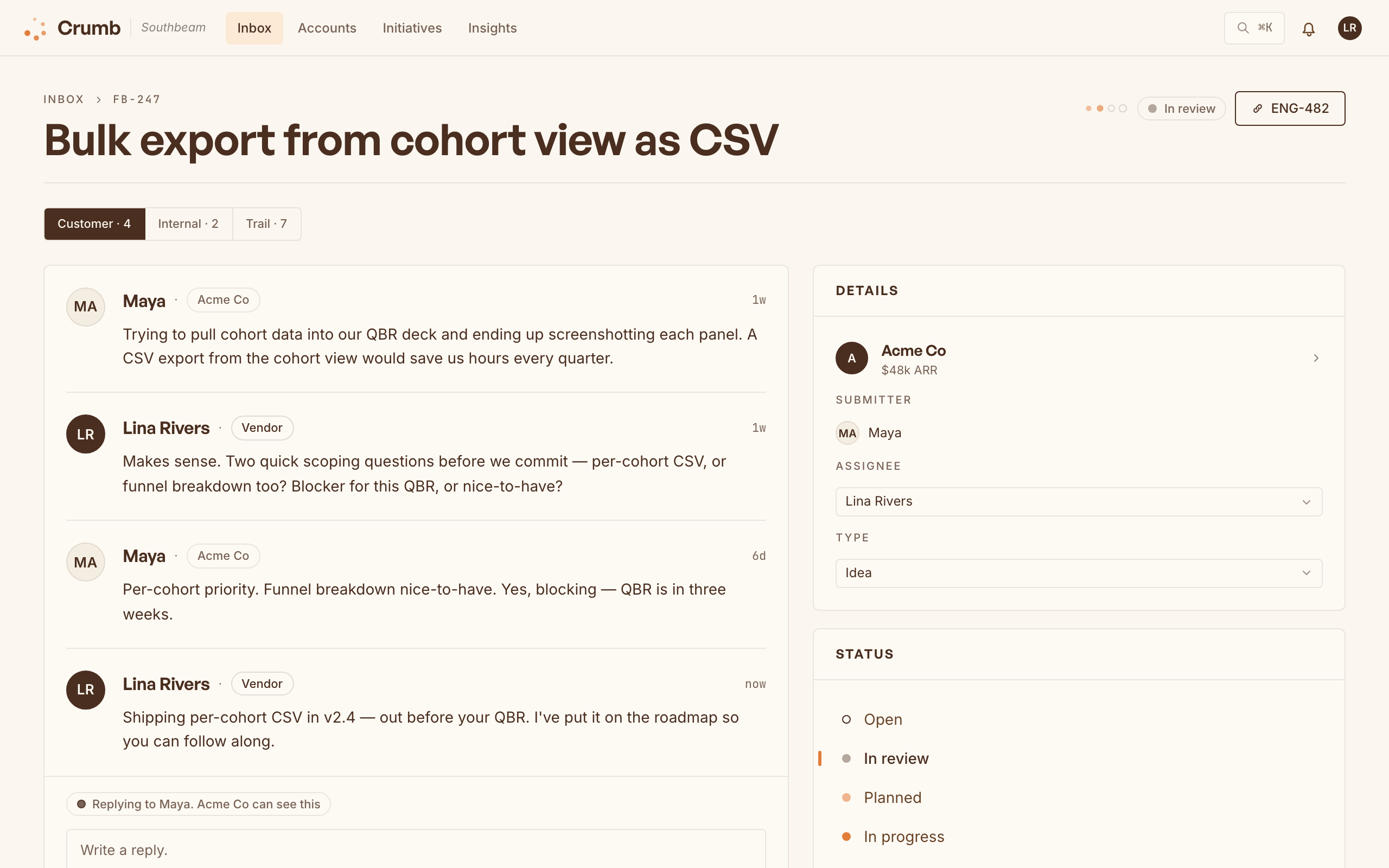
Every item carries the account that sent it and the dollars behind that account, so your inbox sorts by what's at stake instead of who shouted loudest.
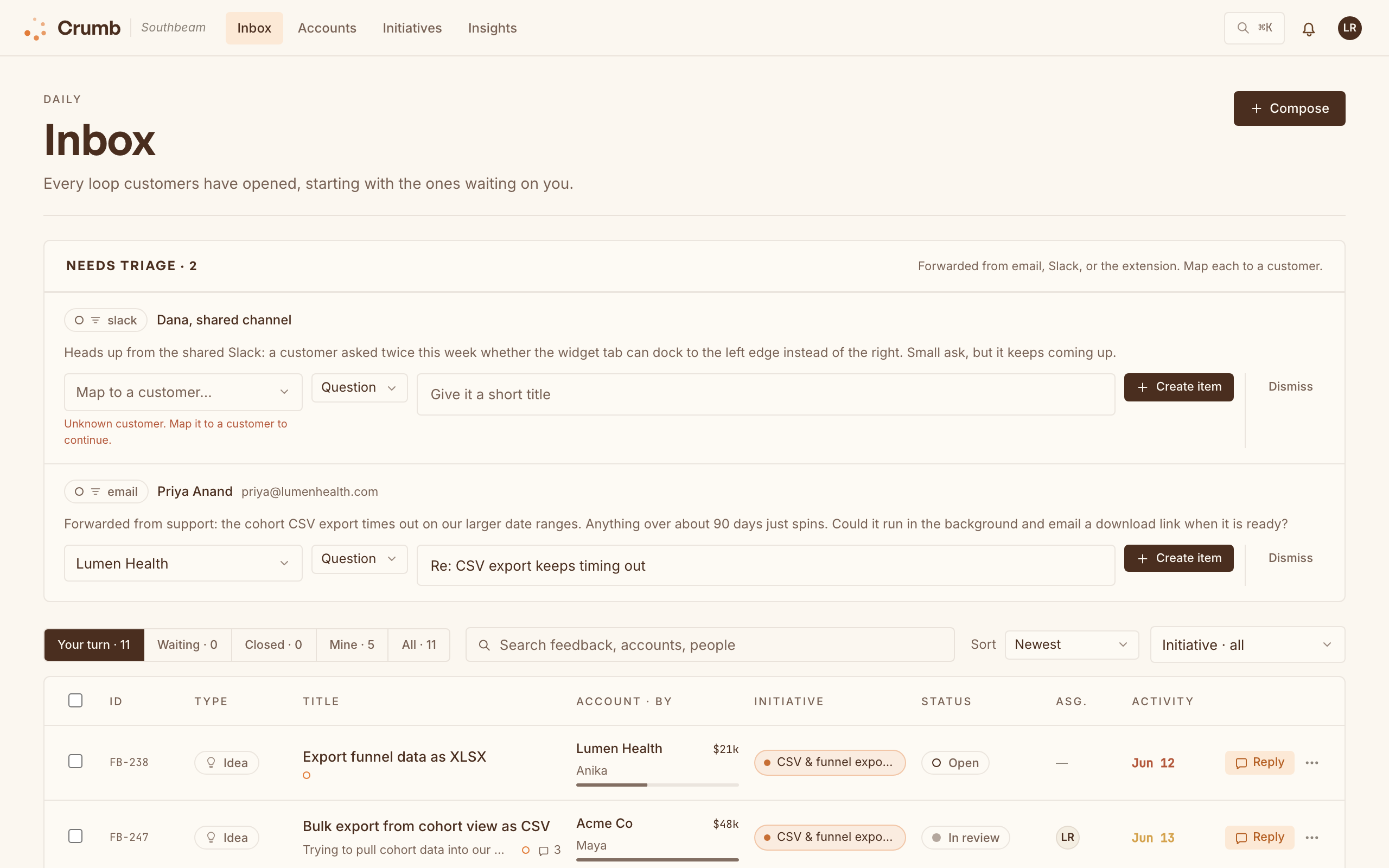
Whose move is it?
The inbox is organized by turns, like a shared email thread. Each row carries a one-line preview, so you can scan without opening threads. The tabs across the top split the work by who moved last:
- Your turn: open loops waiting on your team. Nobody has answered yet, or the customer wrote after your last reply or update. Longest-waiting first, so nobody sits forgotten at the bottom.
- Waiting: you moved last, with a reply, a status email the customer got, or Set aside. The ball is with the customer, or with the fix that's on its way.
- Closed: loops with an outcome: shipped, won't ship, duplicate, or closed by the customer.
- Mine: open loops assigned to you.
- All: everything, in one list.
- Eng done, not told: appears once items are linked to Linear, Jira, or GitHub tickets. It lists open loops whose ticket is done but whose customer hasn't heard from you since. Clear it and nobody finds out about a fix by accident.
Sort by revenue
By default, Your turn is a queue (longest waiting first) and the other tabs show the newest first. Switch the sort to By revenue and any tab ranks by ARR at stake: the combined ARR of every distinct account asking for the item, including the accounts on duplicates merged into it.
Revenue anchors the order. How many accounts are asking, how severe the issue is, and how long the customer has waited only nudge items within a similar revenue range; they never lift a small ask above a much larger one. Severity comes from AI on Crumb Cloud, so on a self-hosted install it simply drops out and the rest still works.
Filter, search, and save views
Narrow any tab by status, type (bug, idea, or question), assignee, account, or initiative, and search across titles, comments, and people. The view lives in the URL, so a link you share opens the same rows for a teammate. Save the views you come back to, like "unassigned bugs" or "everything from one key account," and each teammate keeps their own list.
Merged duplicates are hidden by default. Tick Merged in the toolbar to show them.
Triage in two clicks, or none
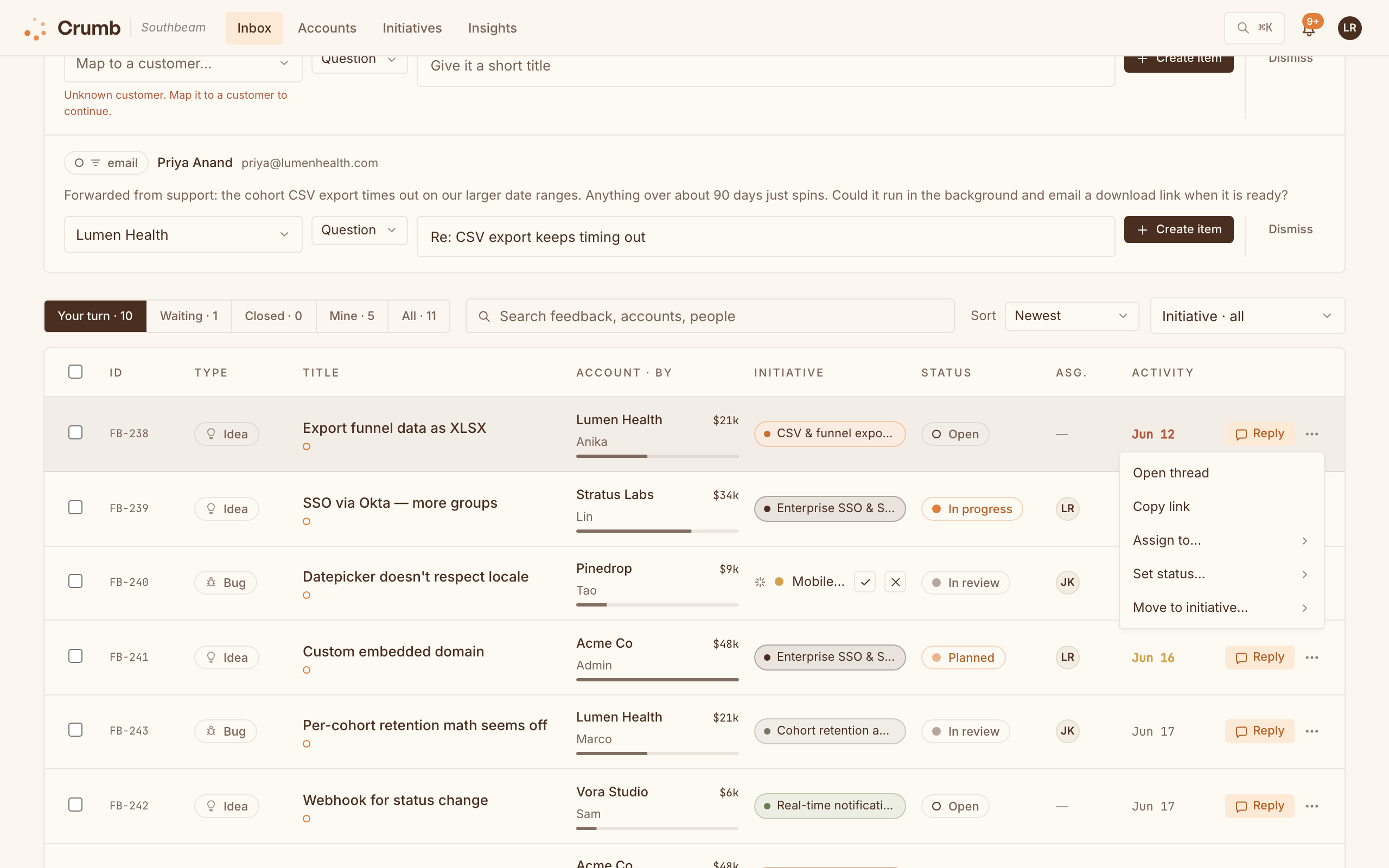
For quick triage, the ⋯ menu on any row lets you open the thread, copy a link, assign a teammate, set the status, or move the item to an initiative without leaving the list. Select several rows and the same actions apply in bulk.
Or keep your hands on the keyboard. Press ? in the inbox for the full list:
| Key | Does |
|---|---|
j / k | Next or previous row (arrow keys work too) |
Enter | Open the thread |
r | Reply in place |
s | Status and actions menu |
a | Assign to me |
x | Select or unselect the row |
Esc | Close a menu, the reply drawer, or the shortcut list |
Statuses
Items move through Open, In review, Planned, and In progress. Shipped, Won't ship, and Duplicate close the loop, and Set aside parks an item for now; the last three carry a reason. Resolved means the customer closed it themselves. Moving an item to a new status is also how customers hear back; see Close the loop.
Group requests into initiatives Cloud · Team
File related items into an initiative and you see every account behind one piece of work, and the combined ARR waiting on it. Once a workspace has at least one initiative, Crumb Cloud suggests which initiative new feedback belongs to; one click accepts the suggestion, one click dismisses it. Self-hosted, you file items by hand.
Pull ARR from your CRM Cloud · Team
Connect HubSpot or Salesforce and Crumb pulls in your companies and their ARR, one way from the CRM, and links each one to the Crumb account with the same name, so feedback lands next to the right dollars. No more copy-pasting numbers from a spreadsheet before a QBR. Self-hosting? Register your own HubSpot or Salesforce app and the sync works there too, no plan needed.
After connecting, an admin picks the CRM field that holds ARR on the integration's card. Crumb doesn't assume one: the stock annual-revenue field is your customer's own revenue, not what they pay you, so until you pick a field only account names sync. Line up fields under Settings → Account mapping, and use Sync now to refresh on demand. ARR you set by hand on an account is marked manual, and a sync never overwrites it.