There are two ways to run Crumb, and both have you collecting feedback in minutes:
- Crumb Cloud, where we host everything. The Free plan covers capture, triage, replies, the public roadmap, and the emails that tell customers what happened. AI and one-click integrations like Slack, Linear, and your CRM start on the Team plan, and session replay on Growth (see Cloud features).
- Self-host, where the whole stack comes up from one
docker composefile on your own box. Integrations work once you register your own OAuth apps; AI and session replay stay on Cloud.
The three steps are the same either way:
- Create a workspace (Cloud: start free; self-host: see Self-host).
- Drop the widget into your app: one script tag, plus a token your server signs so Crumb knows which customer is which.
- Watch the first piece of feedback land in your inbox, with the customer's account already attached.

Find your way around
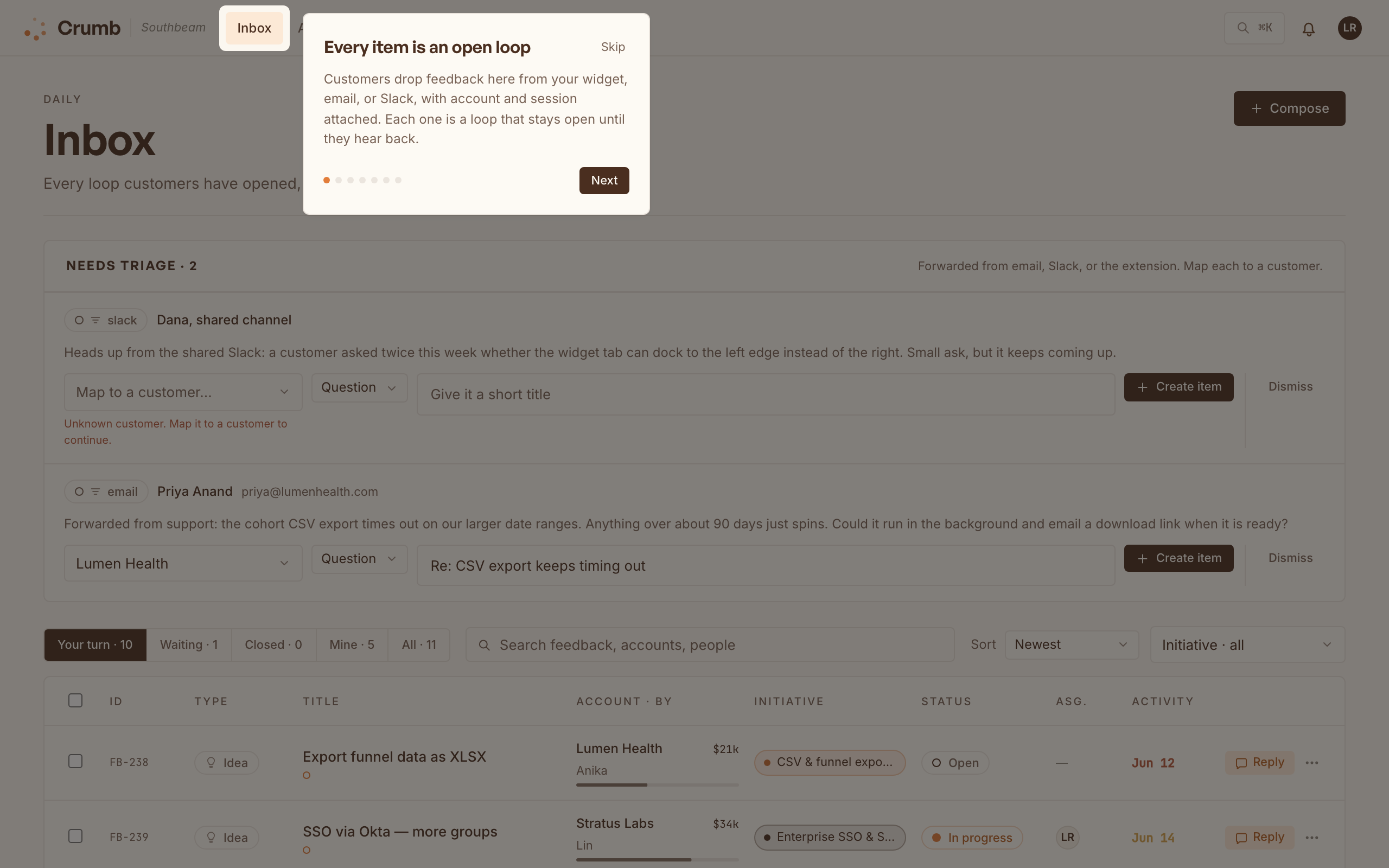
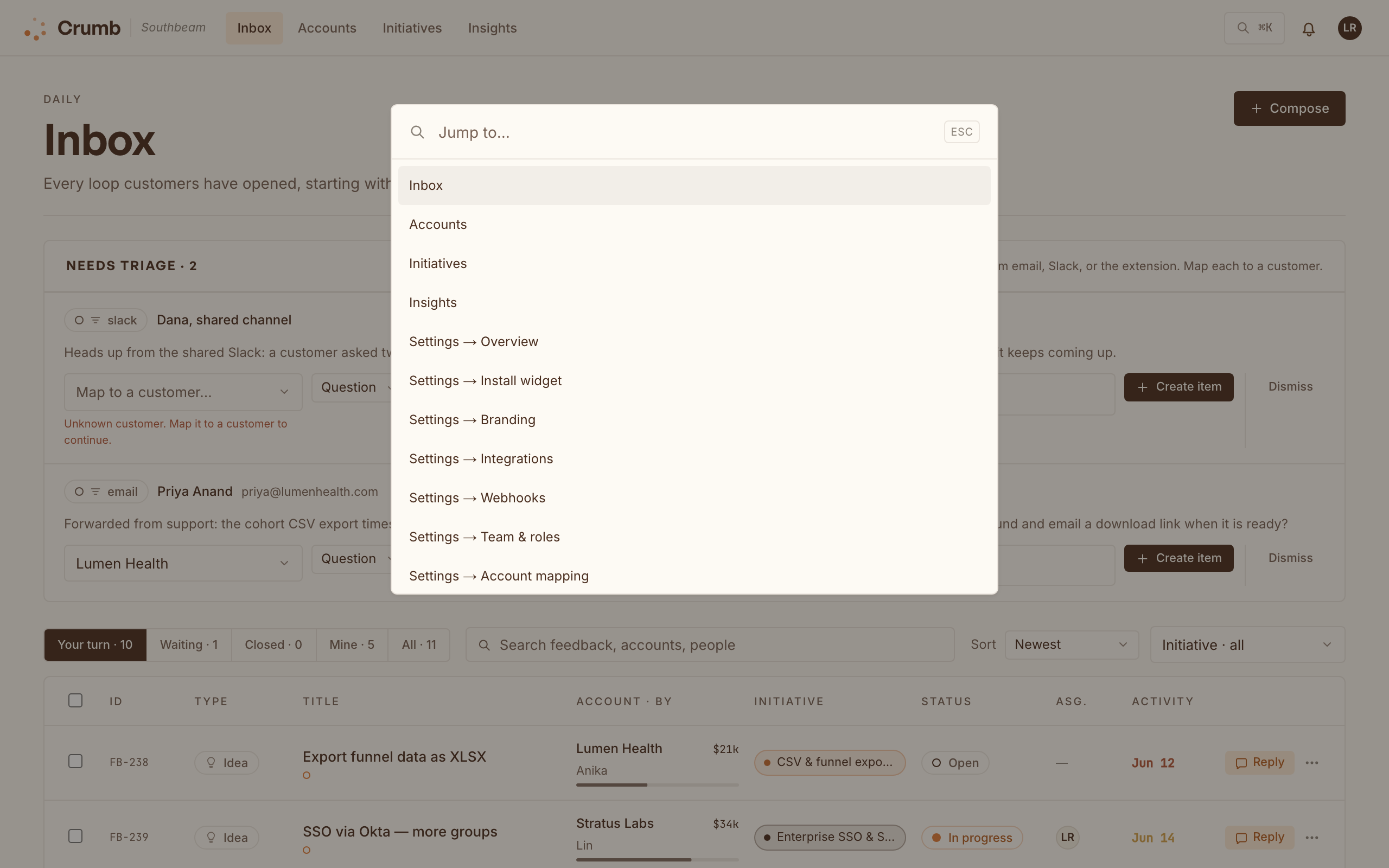
The dashboard is one screen with a top bar: Inbox, Accounts, Initiatives, Changelog, and Insights, plus Ask on Crumb Cloud's Team plan and up. Press ⌘K (or Ctrl-K) to jump to any page or setting without reaching for the mouse, and the bell keeps new replies and mentions in one place. The first time you sign in, a quick guided tour points out each stop.
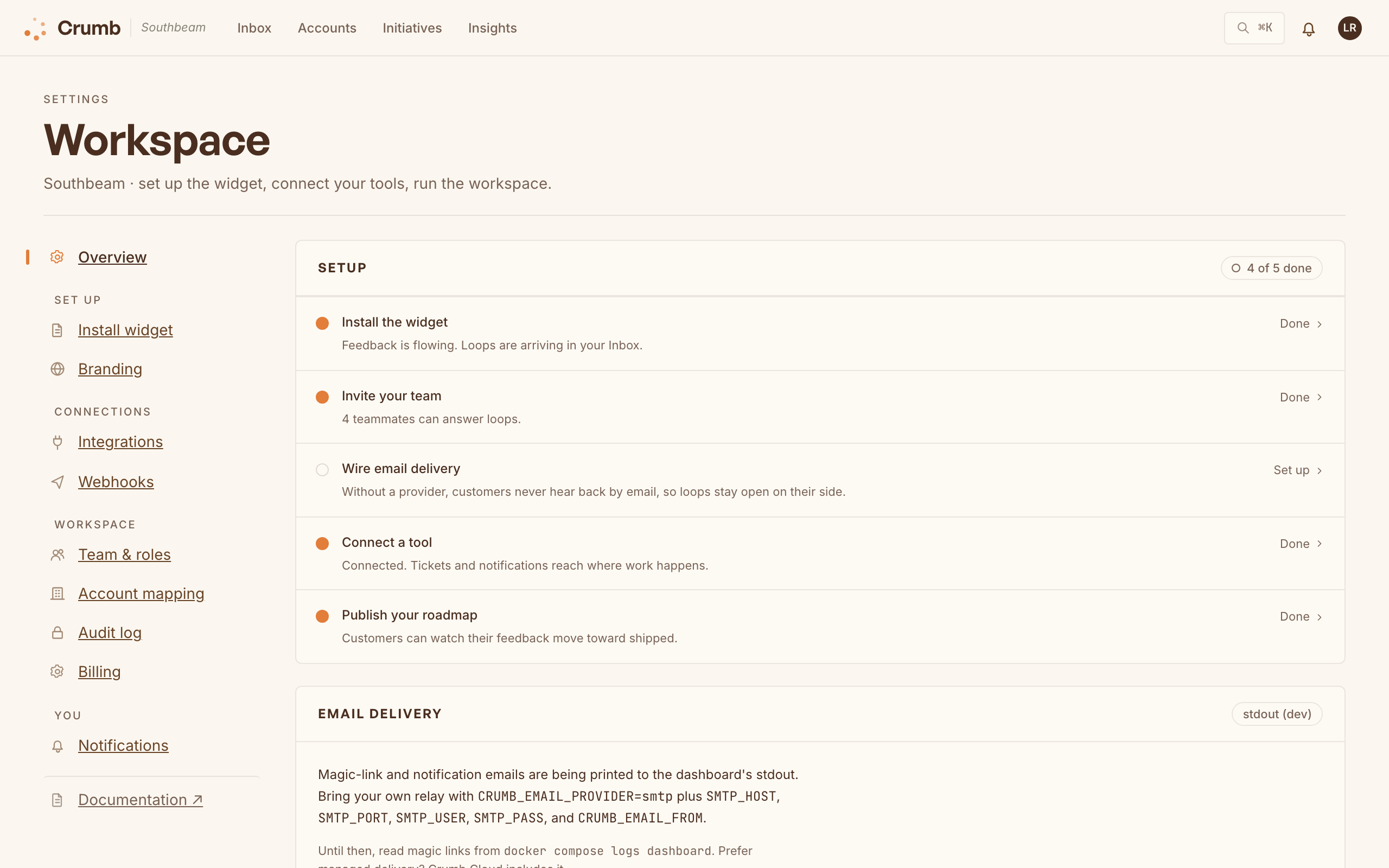
Settings opens on a five-step setup checklist: install the widget, invite your team, wire email delivery, connect a tool, publish your roadmap. Each step is derived from your workspace's real state, so the list stays honest and you always know what's left to wire up.