Quick start
There are two ways to run Crumb, and both have you collecting feedback in minutes:
- Crumb Cloud, where we host everything and the AI and integrations just work.
- Self-host, where the whole stack comes up from one
docker composefile on your own box.
The three steps are the same either way:
- Create a workspace (Cloud: start free; self-host: see Self-host).
- Drop the widget into your app, one script tag.
- Watch the first piece of feedback land in your inbox, with the account and session already attached.

Find your way around
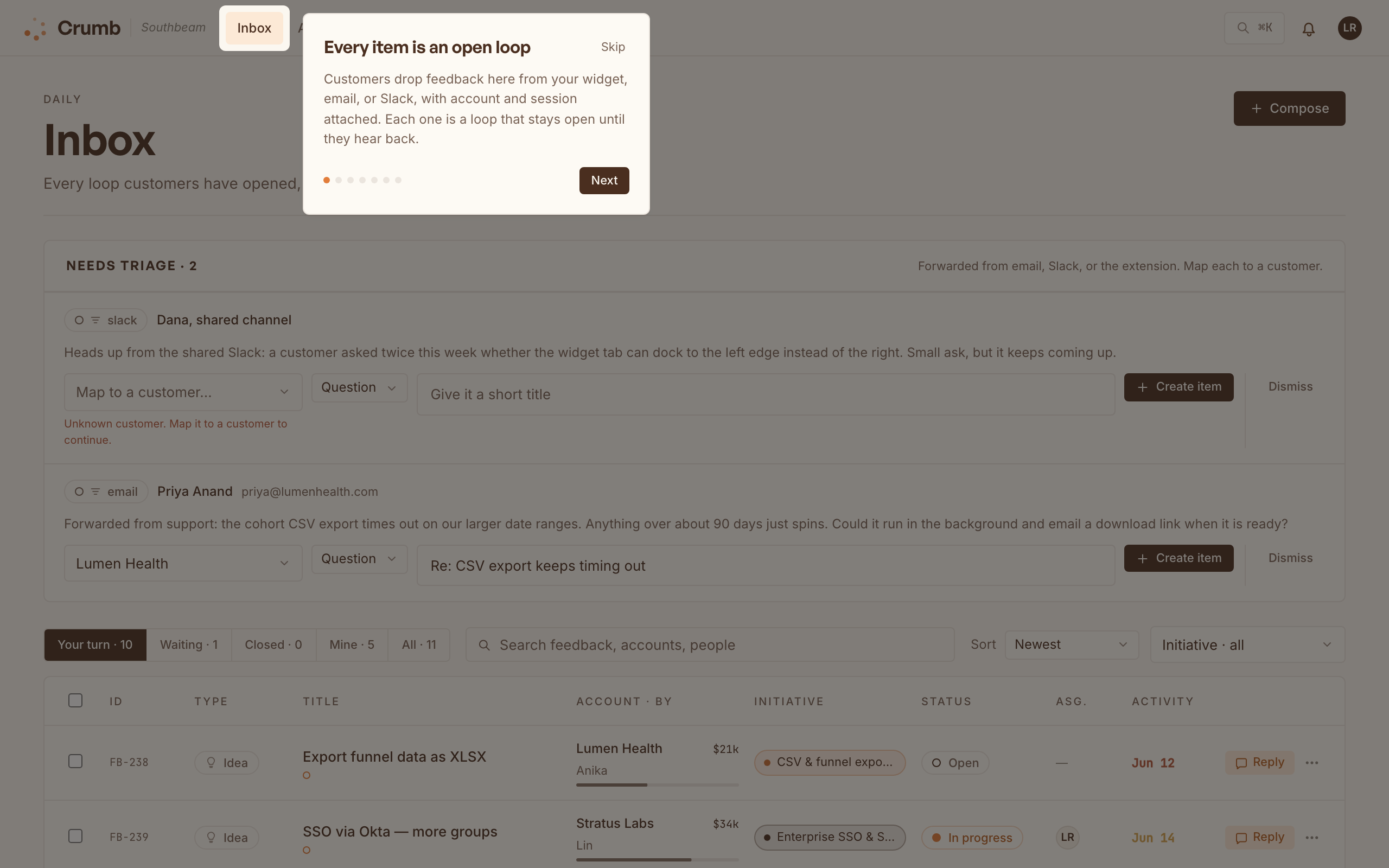
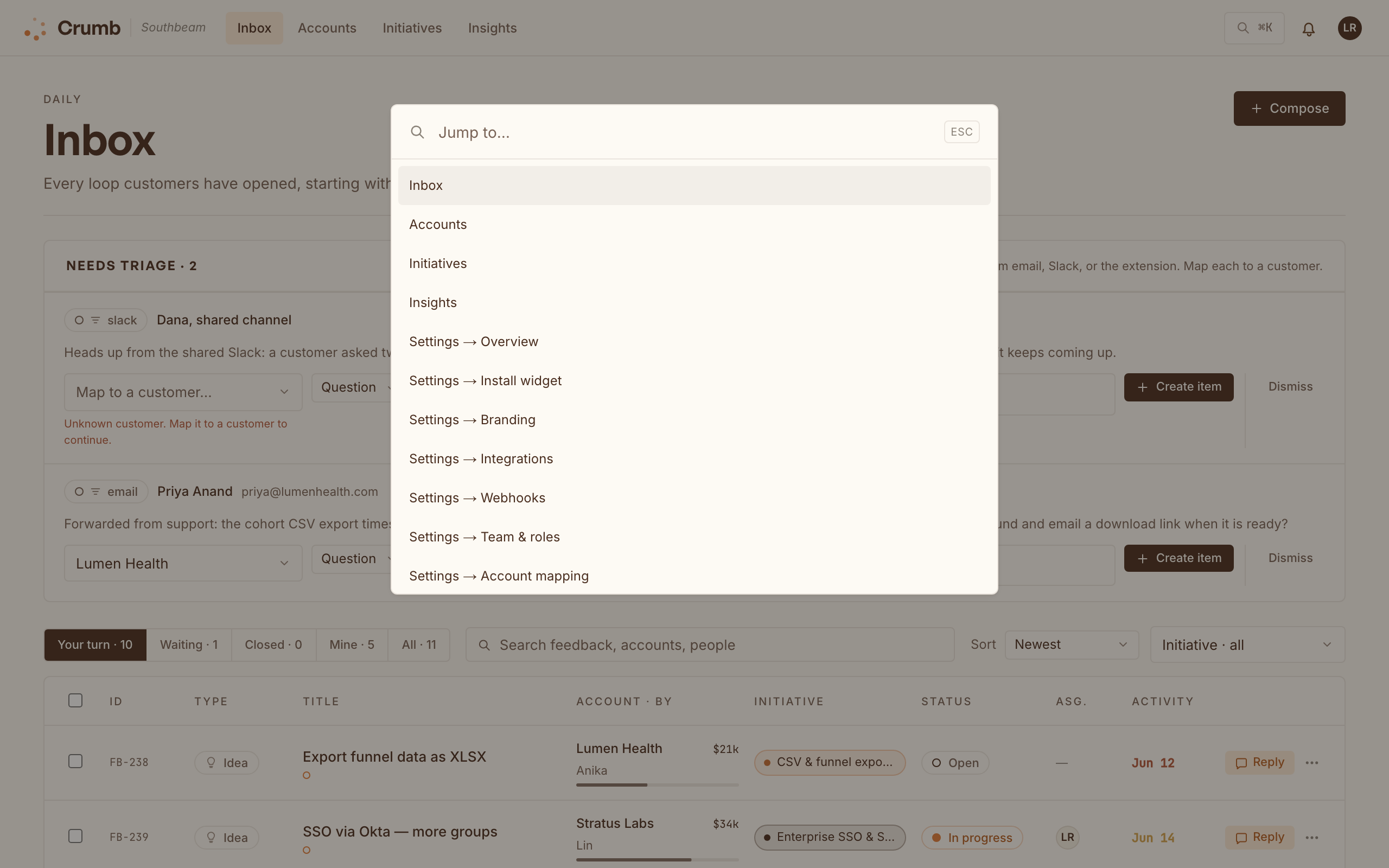
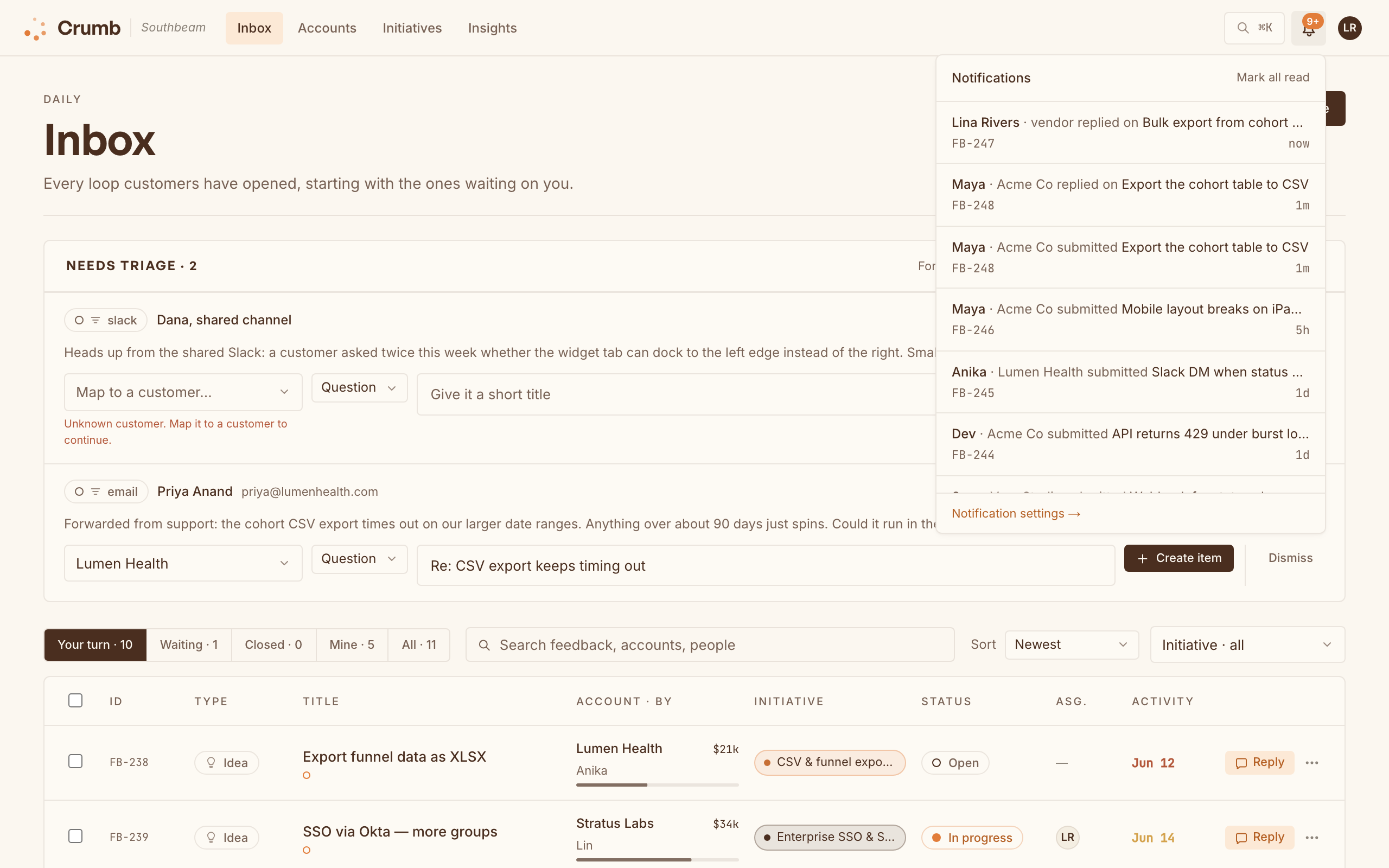
The dashboard is one screen with a top bar: Inbox, Accounts, Initiatives, and Insights. Press ⌘K (or Ctrl-K) to jump to any page or setting without reaching for the mouse, and the bell keeps new replies and mentions in one place. The first time you sign in, a quick guided tour points out each stop.
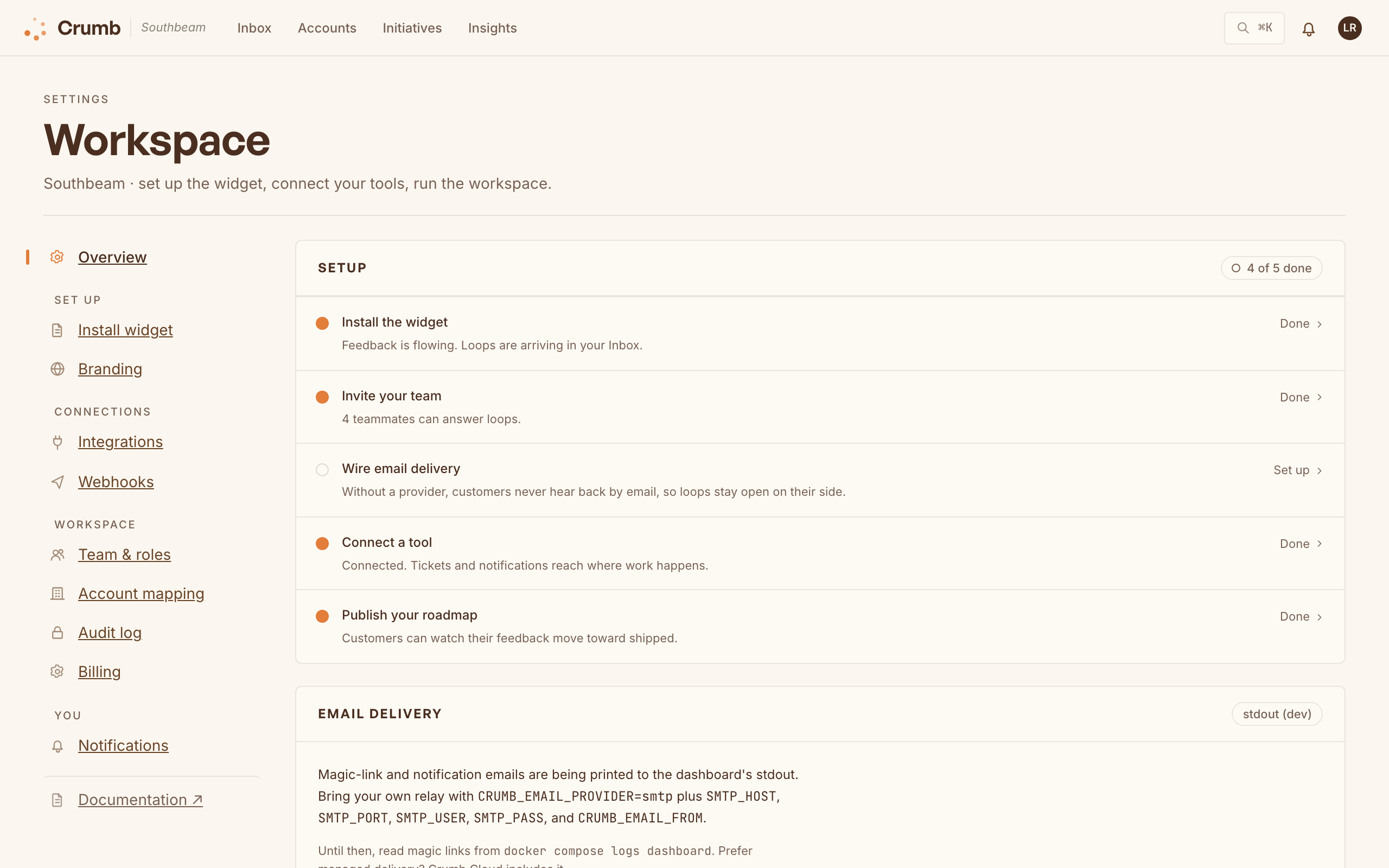
Settings opens on a five-step setup checklist: install the widget, invite your team, wire email delivery, connect a tool, publish your roadmap. Each step is derived from your workspace's real state, so the list stays honest and you always know what's left to wire up.
Install the widget
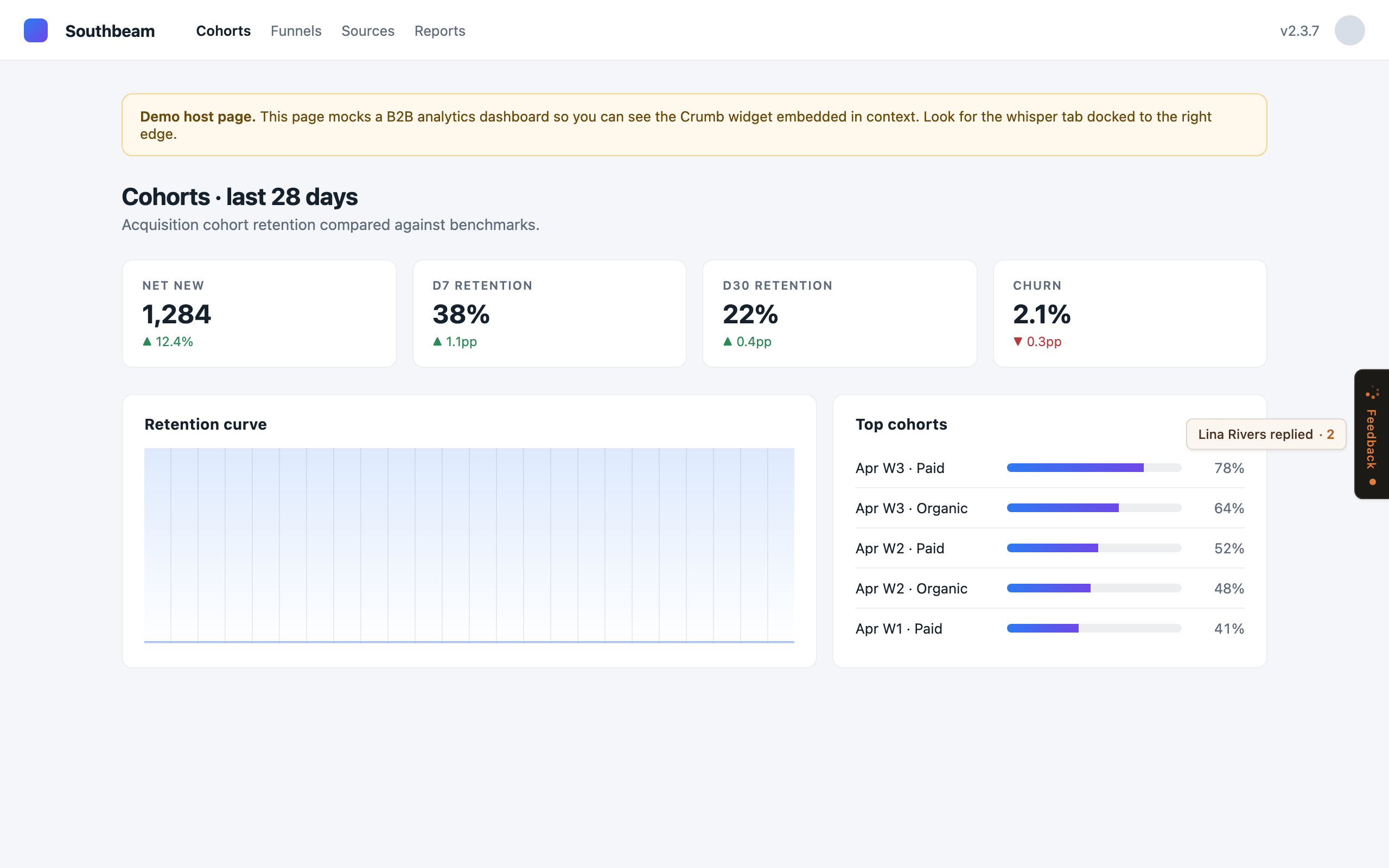
The widget is one script tag. Paste it before </body> on any page and a slim feedback tab docks to the edge of the viewport.
<script
  src="https://crumb-app.localhostlabs.net/widget.js"
  data-workspace="your-workspace"></script>
A launcher that whispers
The launcher is a quiet tab on the left or right edge of the screen, not a floating bubble over your UI. At rest it's nearly invisible. When there's loop news for the customer, a reply from your team or a status move on something they follow, it earns a small ember dot, and hovering slides out a flag with the latest event. Pick the edge, visibility, and vertical offset in your workspace's branding settings; the embed snippet never changes.
Tell Crumb who's giving feedback
Identify the customer so every item arrives tied to the right account (and its ARR). Do it after your own auth resolves:
window.crumb('identify', {
  email: '[email protected]',
  name:  'Maya Chen',
  account: { name: 'Acme Co', external_id: 'acme' }
});Keep private things private
Add a class to any element you want left out of session replay: crumb-block skips a subtree entirely, and crumb-mask masks its text. Inputs are masked by default, and password and email fields are never recorded.
script-src from crumb-app.localhostlabs.net so the widget can load.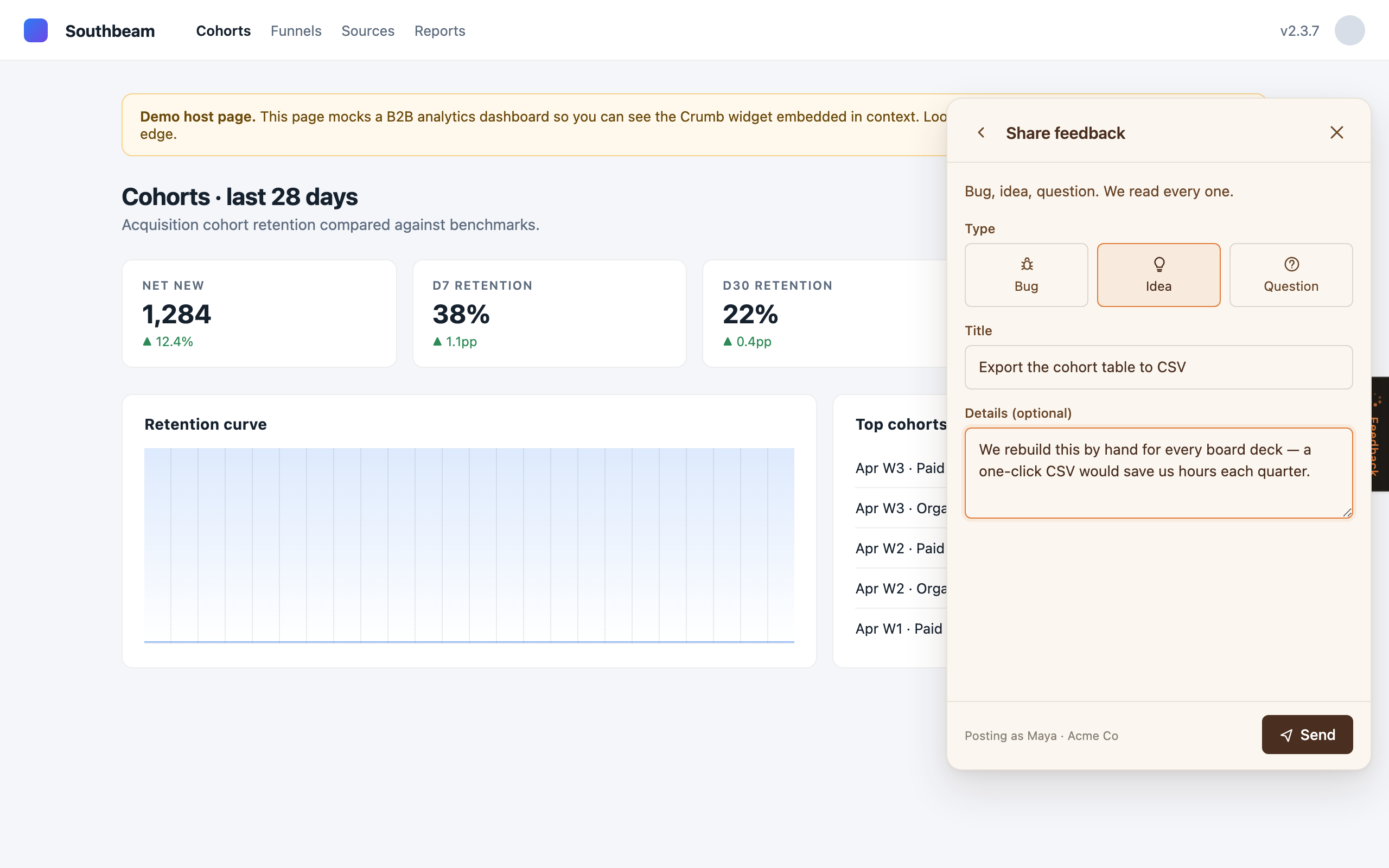
Capture from anywhere
The widget is the front door, but feedback rarely stays in one place. Crumb takes it from a few other channels too, and they all land in the same inbox.
Email to item
Forward support email to your inbound address and Crumb turns each message into an item, with an AI-suggested account match waiting for your nod.
Slack command
Anyone on the team can file feedback without leaving Slack:
/crumb Customers want CSV export from the cohort view
Capture API
For browser extensions or anything custom, post to the capture endpoint with an inbox token. See the API reference.
Compose on behalf
Customer emailed or called instead of using the widget? Hit Compose in the inbox and log it for them. The item appears as if they submitted it themselves, so replies and notifications flow to their email, and it clusters into the right initiative like anything else.
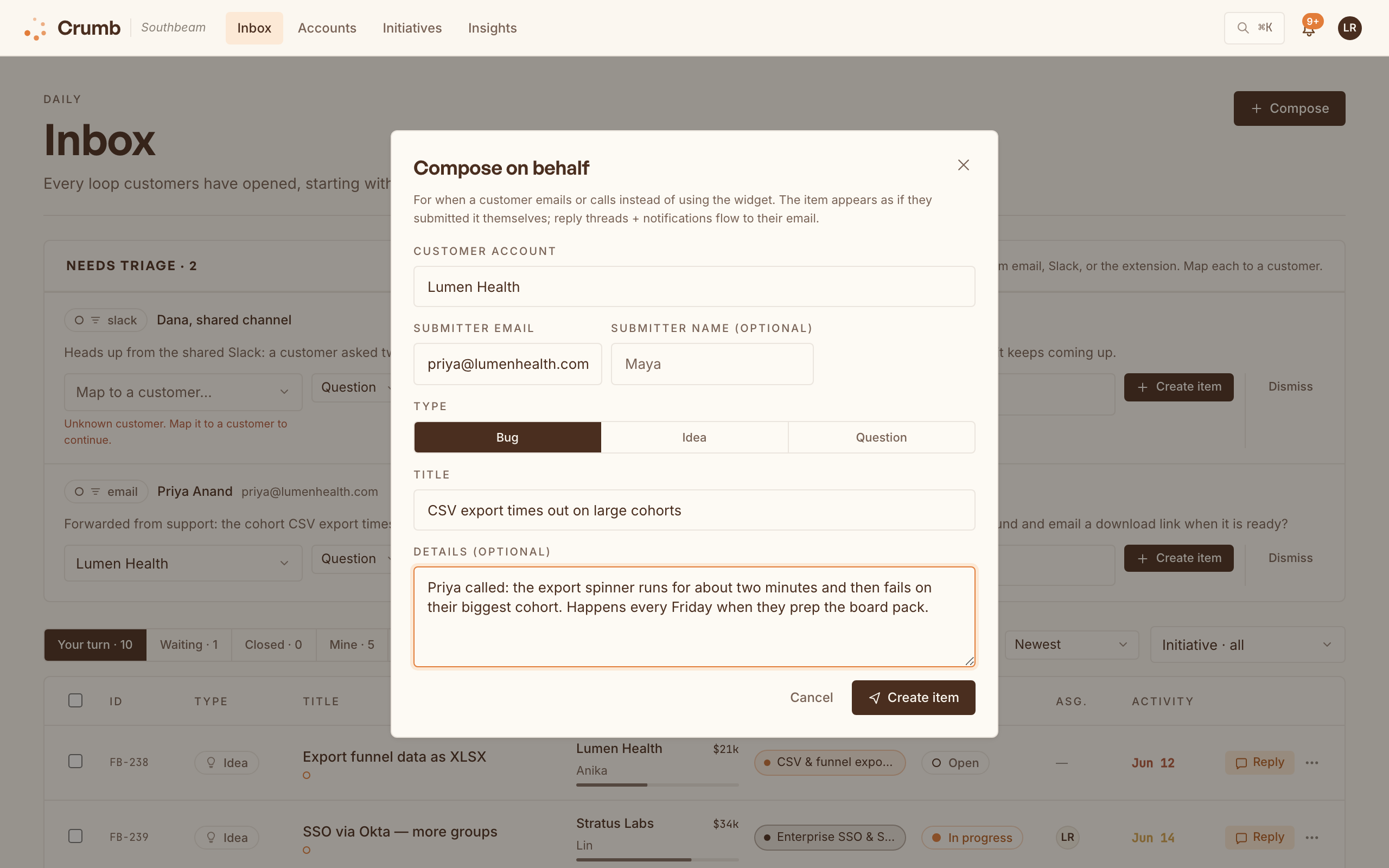
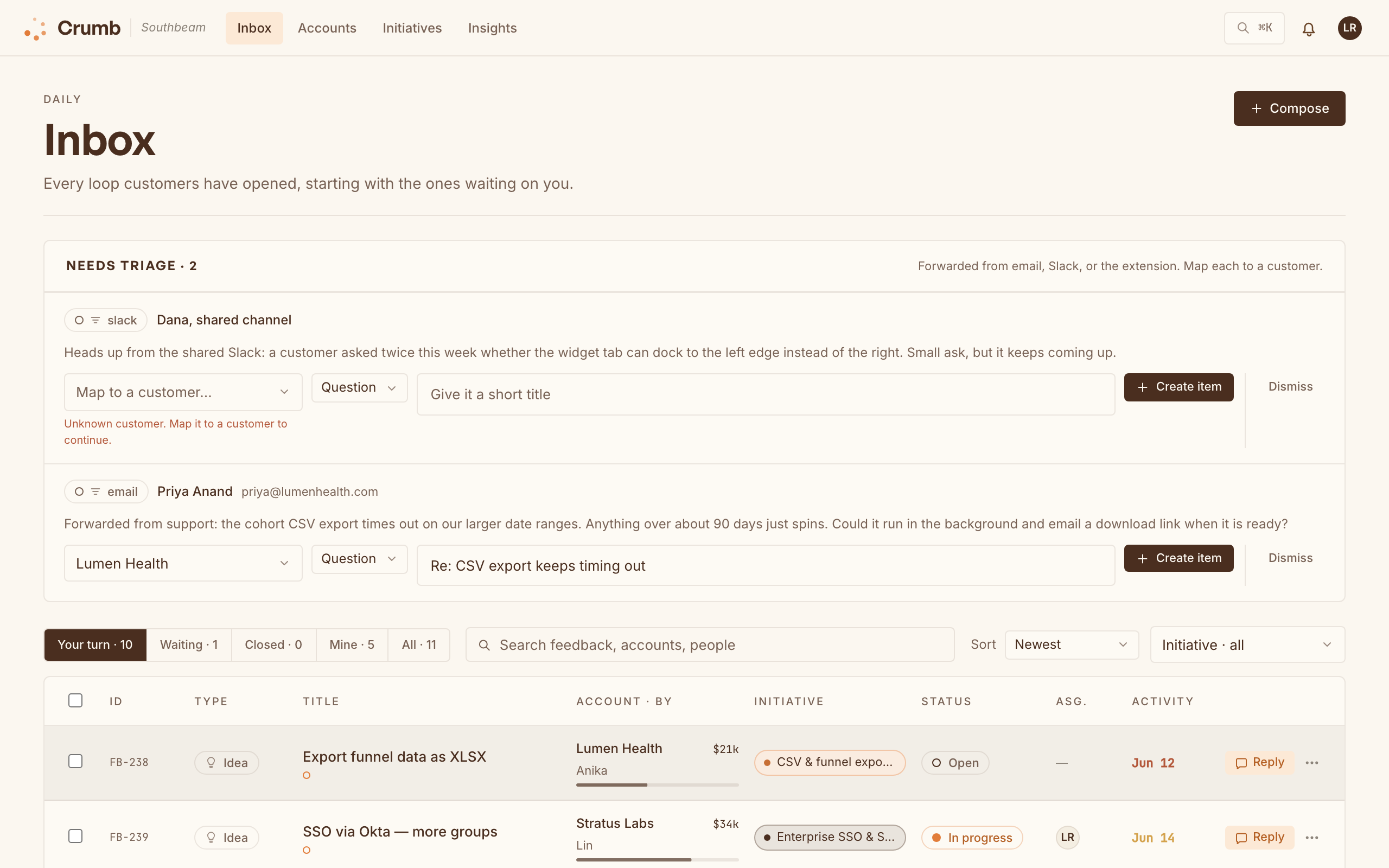
However it arrives, forwarded feedback waits in a Needs triage card at the top of your inbox, with an AI-suggested account match when we can guess one. Map it to a customer and it becomes a normal item; dismiss it if it's noise.
Triage by revenue
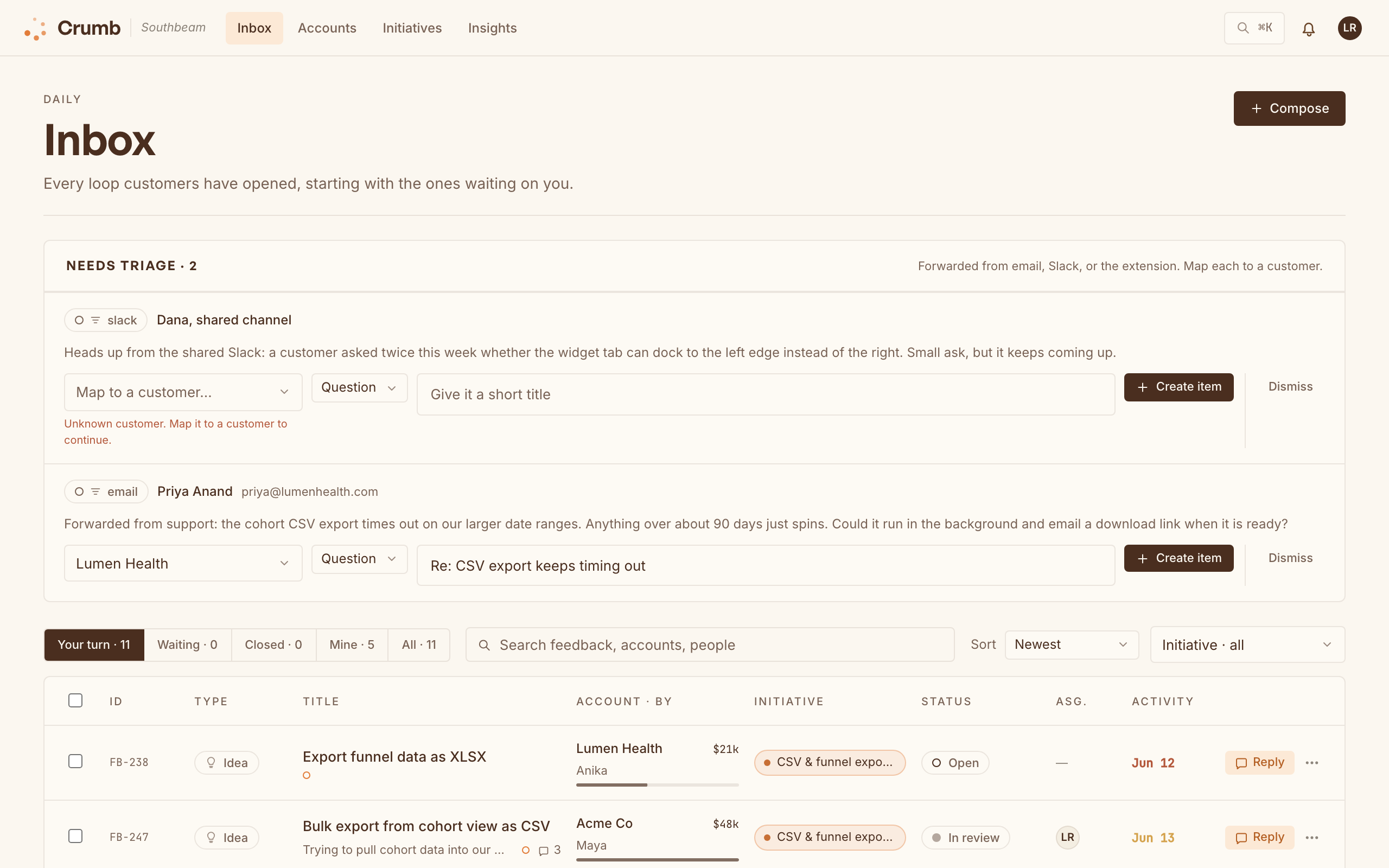
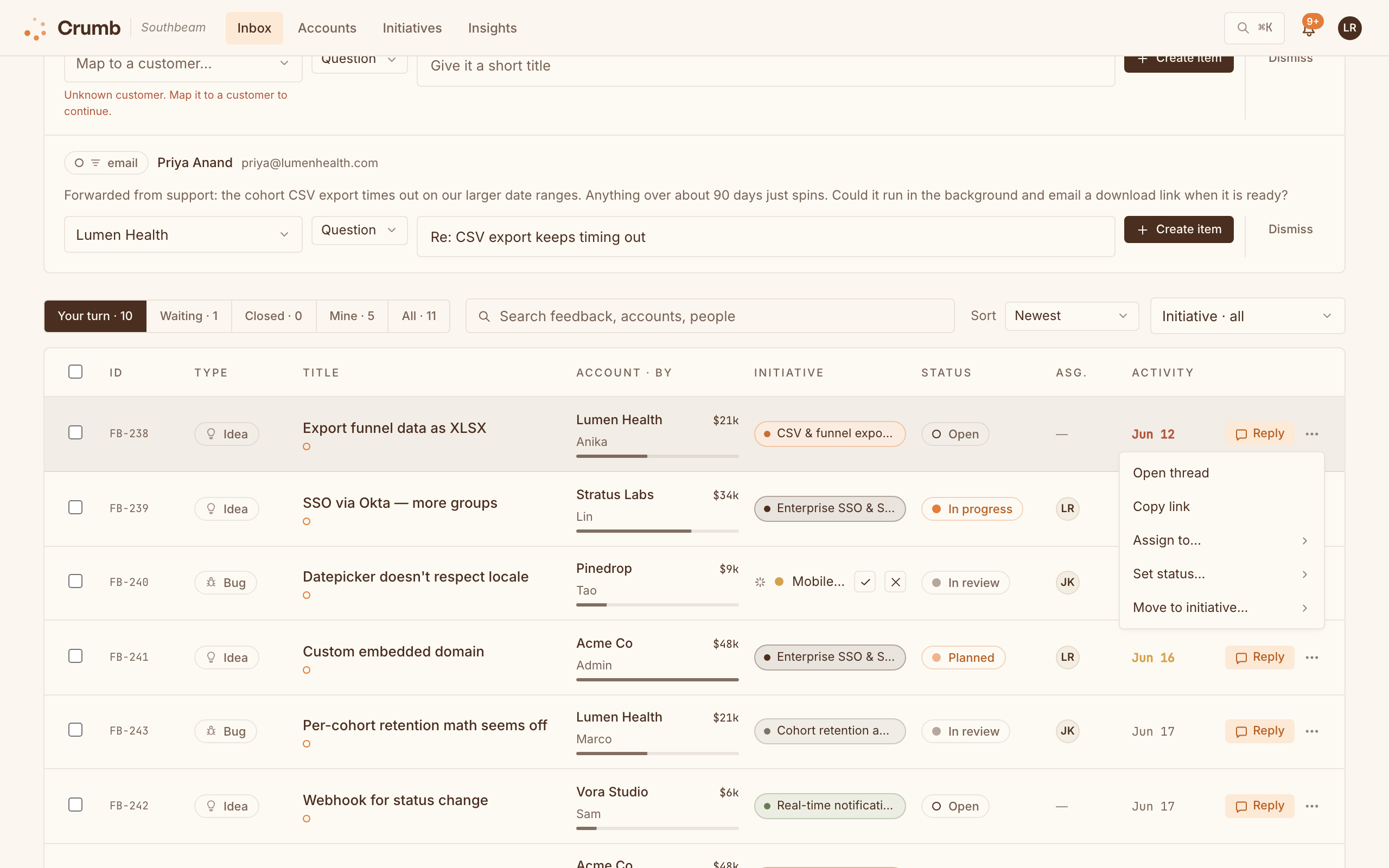
Every item carries the account that sent it and the dollars behind that account, so your inbox sorts by what's at stake instead of who shouted loudest.
Whose move is it?
The inbox is organized by turns, like a shared email thread. Your turn shows everything waiting on your team, longest-waiting first; Waiting holds items where the ball is with the customer. Each row carries a one-line preview, so you can scan without opening threads.
For quick triage, the ⋯ menu on any row lets you open the thread, copy a link, assign a teammate, set the status, or move the item to an initiative without leaving the list. Select several rows and the same actions apply in bulk.
Pull ARR from your CRM Cloud · Team
Connect HubSpot or Salesforce and Crumb pulls in your accounts and their ARR, then matches incoming feedback to the right account on its own. No more copy-pasting numbers from a spreadsheet before a QBR.
Close the loop
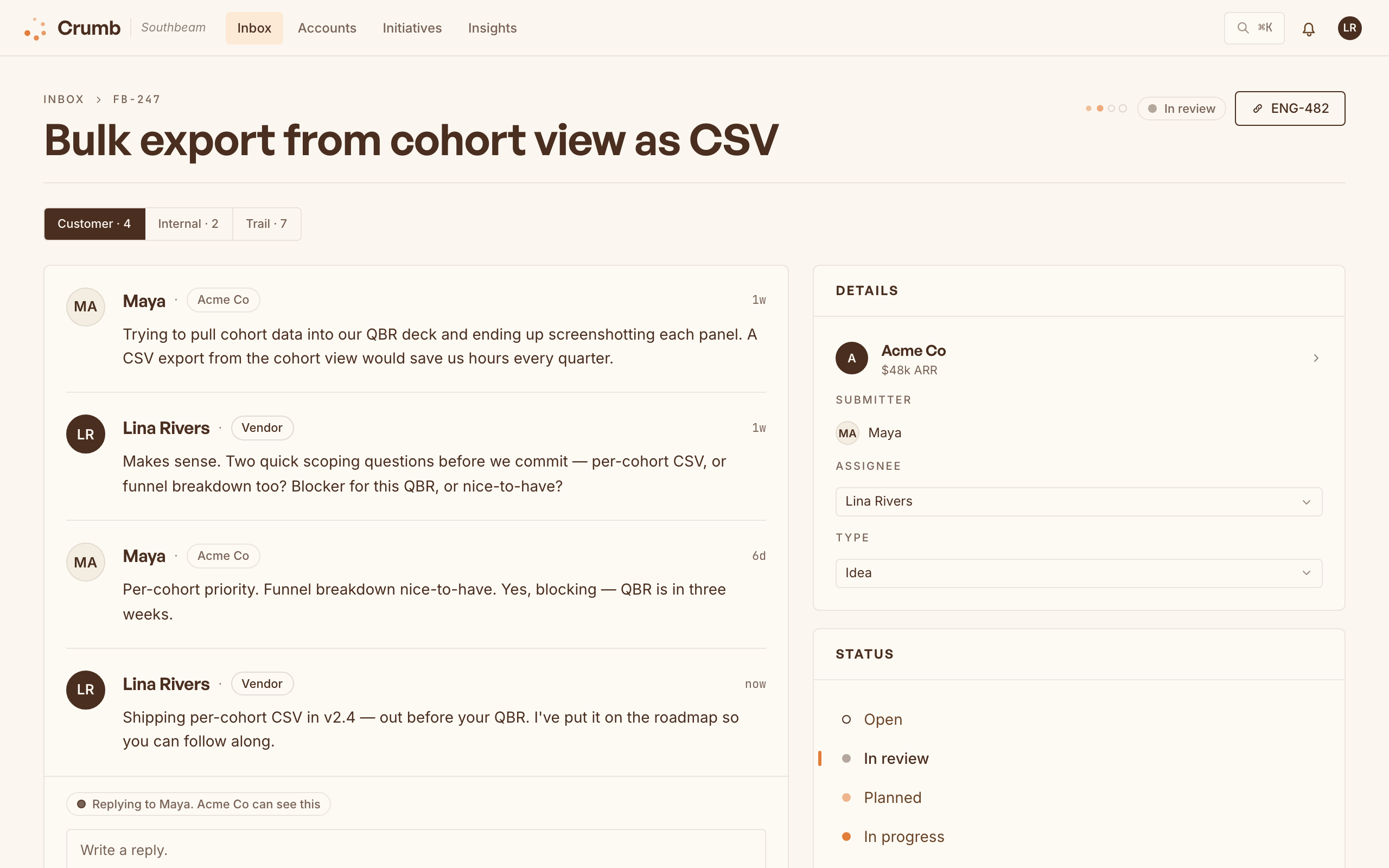
This is the part most tools quietly skip. Reply in the thread or move an item through your status flow, and the customer hears back the moment it changes, by email or right in the widget.
- Reply in-thread and it reaches them where they left it.
- Flip an initiative public so every account can follow along.
- Status hits Shipped and the loop closes itself.
Want a teammate pinged when a customer replies? Wire up Slack or Teams, with a per-person preference for where notifications land.

Public roadmap
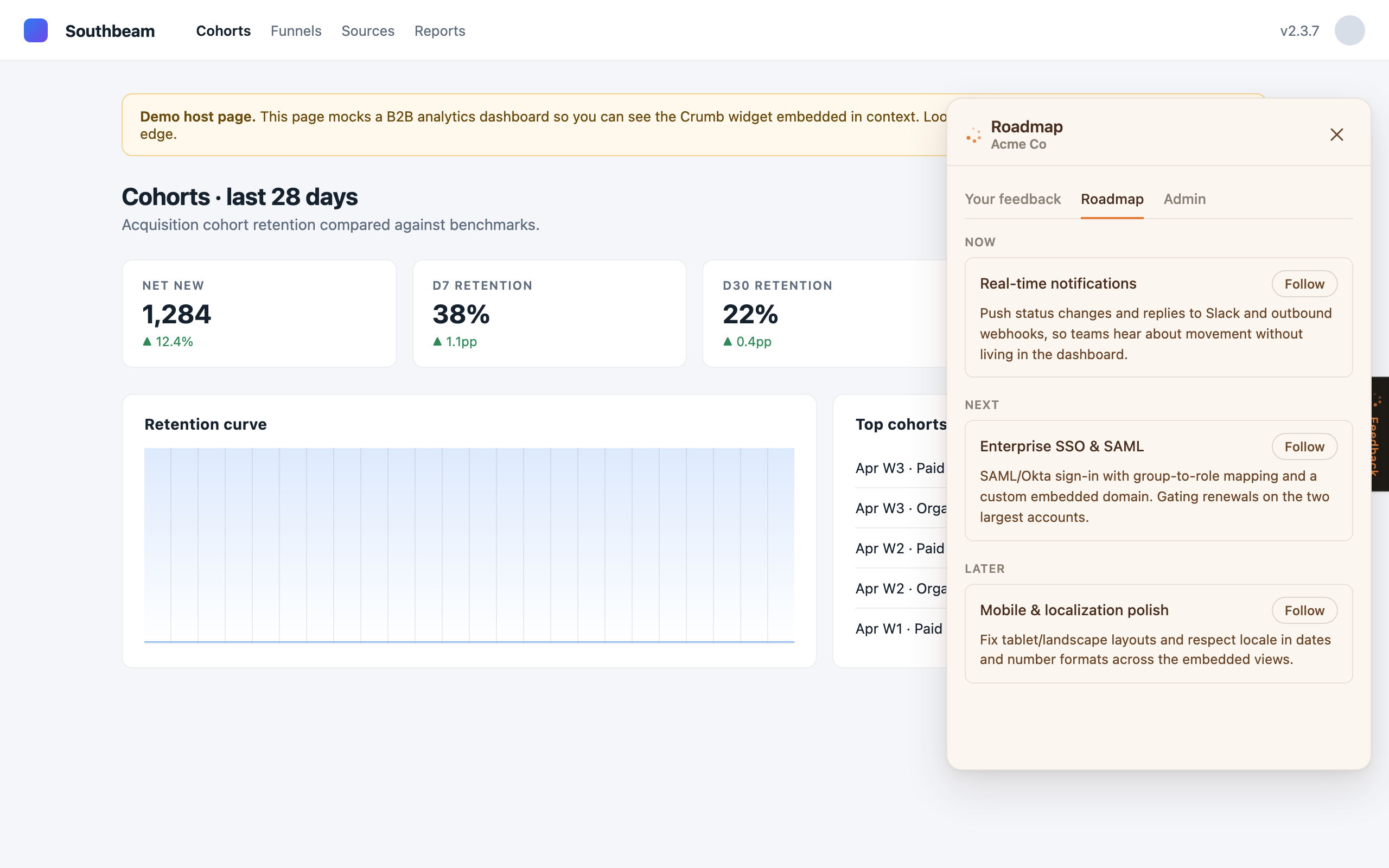
Group related feedback into initiatives, then flip the ones you want into a public Now / Next / Later board. Customers follow what they care about and get a note when it moves, which cuts "is this on the list?" tickets in half.
Push to your tracker
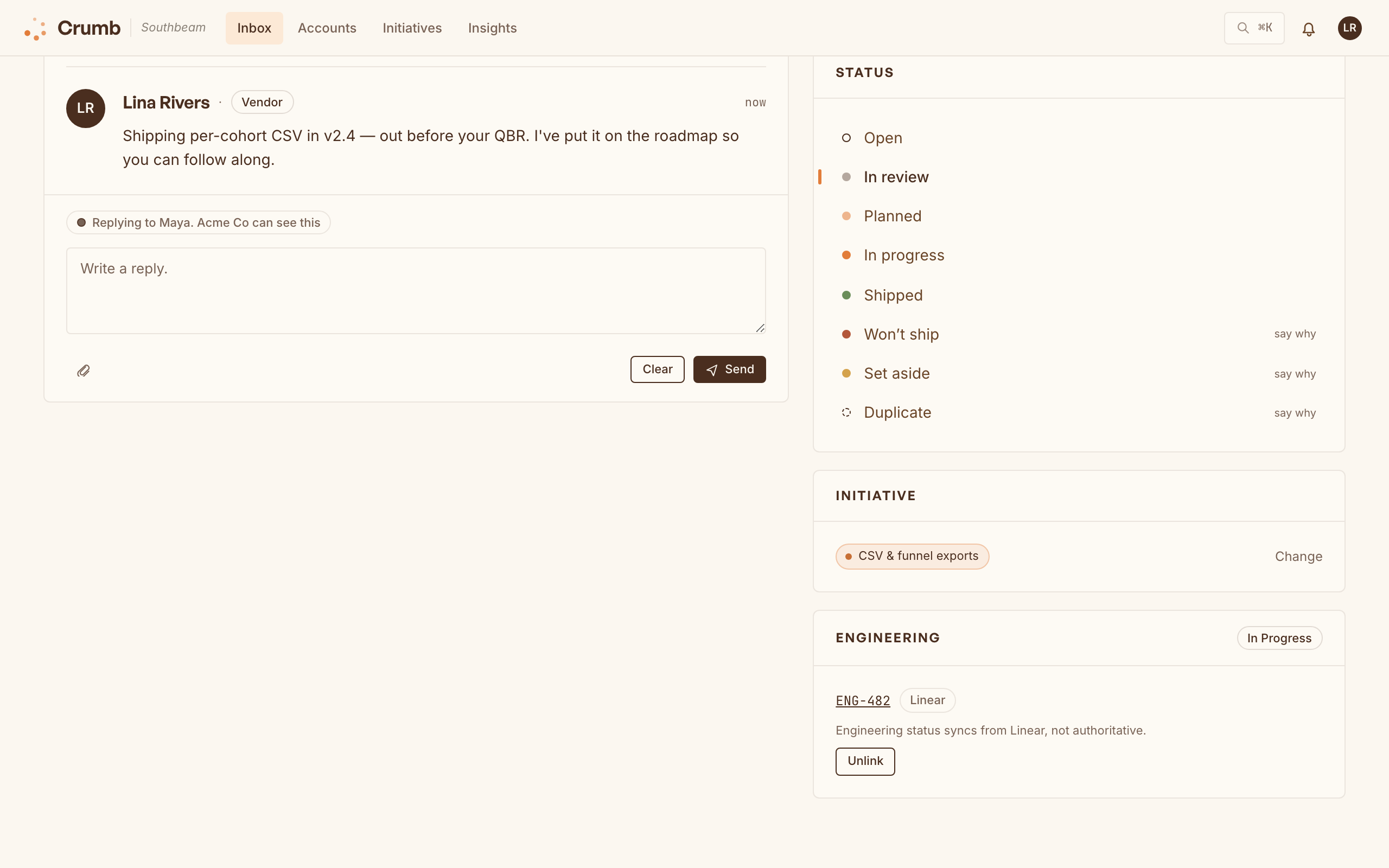
When something is ready to build, send it out as a ticket in Linear, Jira, or GitHub from the thread sidebar. Engineering status syncs back, so the provider stays the source of truth for "is it done" while Crumb owns the customer relationship.
On Team and up, the draft is written for you from the feedback, your recent ticket titles, and (for GitHub) your repo's README and file tree. It's usually about 90 percent there.
AI features Cloud · Team
AI does the triage grunt-work so you can spend your time on the calls. Everything here runs on the Team plan and up.
- Auto-triage: every new item is clustered into the right initiative automatically, with a confidence score. Accept or dismiss the suggestion inline.
- Ticket drafting: titles and bodies written for Linear, Jira, and GitHub (see Push to your tracker).
- Reply drafting: a suggested response to the customer, in your team's voice.
- Ask your feedback: ask a plain-English question across all your feedback, usage, and CRM data.
- Churn signals: accounts that went quiet or are trending negative get flagged before they leave.
- Request sizing in Slack: @mention Crumb on a message in a feedback channel and it replies in-thread with the ask restated, the account's ARR, similar open requests and the revenue behind them, and a rough T-shirt scope read from your connected repo. It reads only, nothing gets filed.
Session replay Cloud · Growth
See exactly what the customer saw. When a customer opts in at submit time, Crumb attaches a replay of their recent session to the feedback, so "it's broken" becomes "they got stuck on the export button for 40 seconds."
- Consent first: the customer checks a box in the composer. Nothing is recorded silently.
- Private by default: inputs are masked, password and email fields are never captured, and you can add
crumb-blockorcrumb-maskto anything else. - A real player: rendered cursor and click ripples, idle-skip so you don't watch dead air, and a network panel (with secrets redacted).
- AI summary: a one-line "here's what they were trying to do" while the replay loads.
Usage analytics Cloud · Team
Send Crumb your product usage events and feedback gets context. You'll see how active an account is right next to what they're asking for, and which initiatives matter to the people who actually use the thing.
Self-hosting? Usage analytics is always on, no plan required. Send events with the usage-events API.
Integrations
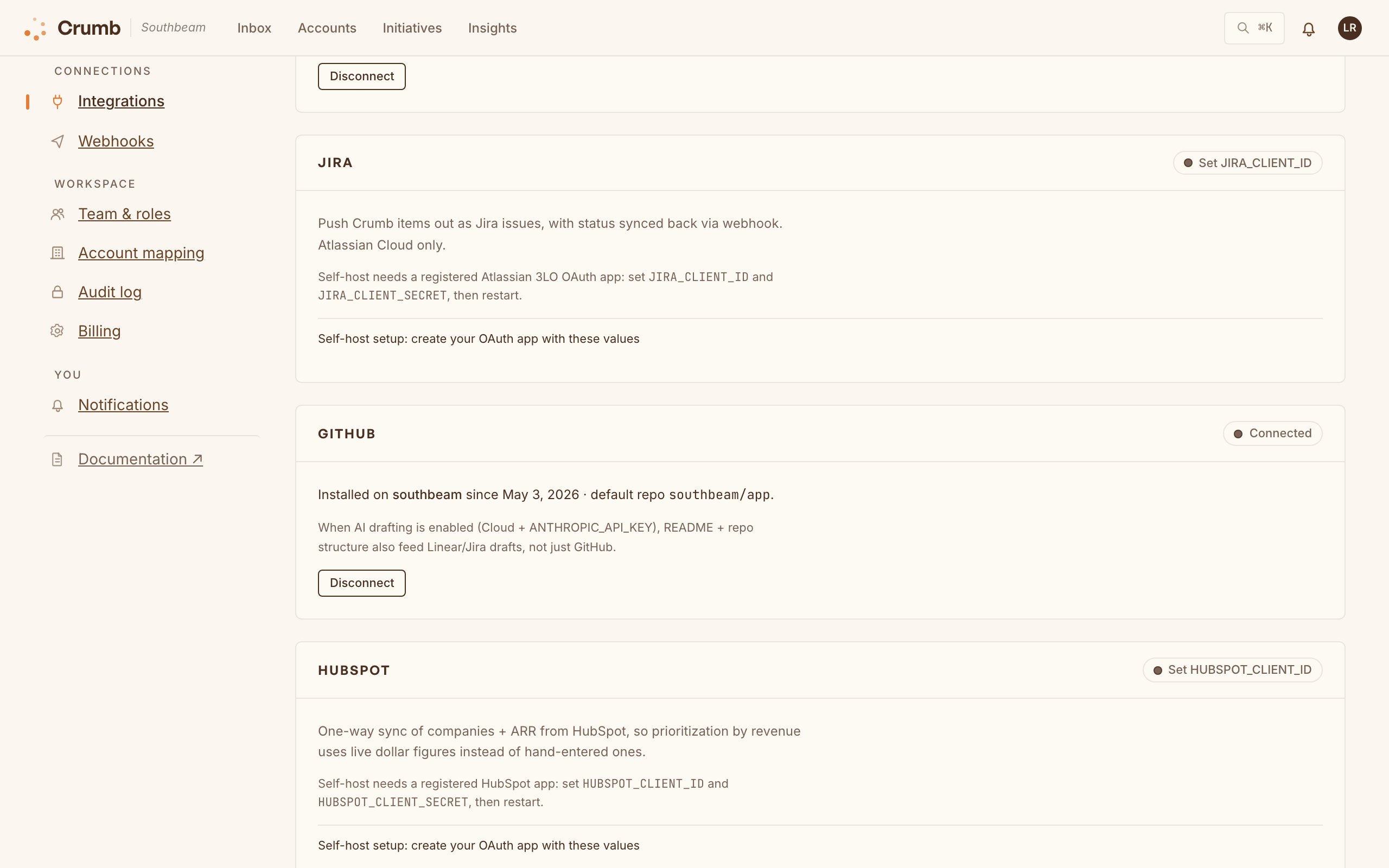
Crumb plays nicely with the tools you already live in. On Cloud most are one click; self-host uses your own OAuth apps.
| Tool | What it does |
|---|---|
| Linear / Jira / GitHub | Push items out as tickets with AI drafts, then sync engineering status back. |
| Slack | DM the right teammate on replies, file feedback with /crumb, and @mention the bot on a message for an instant sizing reply. |
| Microsoft Teams | The same notifications via Teams, plus per-account customer webhooks. |
| HubSpot / Salesforce | Sync accounts and ARR so triage is revenue-aware (see Triage by revenue). |
| Email & webhooks | Turn inbound email into items, and fire typed events (created, status change, reply, assigned, merged) to any custom endpoint, each subscribed per endpoint. |
API reference
Everything the widget does, you can do over HTTP. Endpoints live under /api/v1, return JSON, and are rate limited (60 requests to start, refilling about 1 per second; a 429 comes back with a Retry-After header).
| Method | Path | Does |
|---|---|---|
POST | /api/v1/items | Create an item (account and user are created if new). |
GET | /api/v1/items | List the caller's submissions. |
GET | /api/v1/items/[id] | Read a thread the caller submitted. |
POST | /api/v1/items/[id] | Reply on a thread. |
POST | /api/v1/captures | Create an item from an extension (inbox token). |
POST | /api/v1/usage-events | Ingest product usage events. |
Creating an item looks like this:
curl -X POST https://crumb-app.localhostlabs.net/api/v1/items \
  -H "Content-Type: application/json" \
  -d '{
    "workspace_slug": "your-workspace",
    "account_user_email": "[email protected]",
    "account_user_name": "Maya Chen",
    "account_name": "Acme Co",
    "type": "idea",
    "title": "Export a cohort as CSV",
    "body": "Without screenshotting the table, please."
  }'
Connect an AI assistant MCP
Crumb runs a Model Context Protocol server, so an AI assistant (Claude Code, Claude Desktop, Cursor, or any MCP host) can connect straight to your workspace and read and triage feedback in plain language. Ask it "what are our highest-ARR accounts asking for?", or tell it to "reply to FB-42 and mark it shipped." It runs through the same code paths as the dashboard, so replies and notifications fire exactly as if you'd done it by hand.
1 · Create an API key
In Settings → API keys, an admin creates a key. It's shown once, so copy it then. A key acts as the teammate who made it: reading works for any key, and writes (status changes, replies) are attributed to you and respect your role, so only admins and PMs can change things. Revoke a key anytime, and treat it like a password.
2 · Add it to Claude Code
One command wires it up. Hit the button to copy it, paste it in your terminal, and swap in the key you just created:
claude mcp add --transport http crumb \
  https://crumb-app.localhostlabs.net/api/mcp \
  --header "Authorization: Bearer crumb_sk_…"
/api/mcp.Any other MCP client
HTTP-capable hosts (Claude Desktop, Cursor, and most others) take a config block:
{
  "mcpServers": {
    "crumb": {
      "type": "http",
      "url": "https://crumb-app.localhostlabs.net/api/mcp",
      "headers": { "Authorization": "Bearer crumb_sk_…" }
    }
  }
}
For a client that only speaks stdio, bridge with mcp-remote:
npx mcp-remote https://crumb-app.localhostlabs.net/api/mcp \
  --header "Authorization: Bearer crumb_sk_…"
What the assistant can do
Reading is available to any key; the write tools require an admin or PM key.
| Tool | Access | Does |
|---|---|---|
list_items | Read | List feedback, filtered by status, type, or account. |
search_items | Read | Search across item titles and bodies. |
get_item | Read | Read one item and its full thread. |
list_roadmap | Read | Roadmap initiatives by Now / Next / Later. |
list_accounts | Read | Customer accounts with their ARR. |
update_item_status | Write | Move an item through the status flow. |
reply_to_item | Write | Reply in a thread, or leave a private team note. |
create_item | Write | Log a new feedback item. |
assign_item | Write | Assign or unassign a teammate. |
Self-host
Crumb is AGPL-3.0 and runs entirely on your own infrastructure. The whole stack, dashboard plus widget plus Postgres, comes up from one file.
docker compose up -d --build
# then open http://localhost:3000
Prefer the full dev setup?
pnpm install
pnpm db:up         # Postgres in Docker
pnpm db:push       # apply the schema
pnpm db:seed       # sample data (the Southbeam workspace)
pnpm widget:build  # build the embed widget
pnpm dev           # http://localhost:3000
Health checks
GET /api/health for liveness and GET /api/health/ready (200 only when the database is reachable). Handy behind a load balancer.
Keep it tidy
Two cron jobs keep things fresh: a sweep for orphaned uploads and replays, and a CRM refresh if you connected one.
# nightly: sweep orphaned attachments + replays
curl -X POST -H "X-Crumb-Sweep-Secret: $SECRET" \
  http://localhost:3000/api/v1/internal/replay-sweep

# every few hours: refresh CRM accounts + ARR
curl -X POST -H "X-Crumb-Sweep-Secret: $SECRET" \
  http://localhost:3000/api/v1/internal/crm-sync
Back it up
docker compose exec -T postgres \
  pg_dump -U crumb -Fc crumb > crumb-$(date +%F).dump