The widget is the front door, but feedback rarely stays in one place. Customers email support, sales hears it on a call, and a teammate spots it in a chat. Crumb takes it from those channels too, and they all land in the same inbox, tied to the same accounts.
Two ways in
Everything below arrives one of two ways:
- As an item, straight away. The widget, Compose in the inbox, and the Slack
/crumbcommand create a normal item on the account you picked. Replies and status updates reach that customer automatically. - As a capture, for a person to confirm. Forwarded email, the Capture API, and feedback connectors land in Needs triage, because Crumb can't always tell who the customer is or whether the message is feedback at all. You confirm each one onto an account, or dismiss it.
Email to item
Your workspace has a capture address of the form inbox+<slug>.<token>@<domain>, shown on Settings → Install. Forward support email to it and each message lands in Needs triage, ready to become an item. On Team and up, an AI-suggested account match is waiting for your nod. Quoted earlier messages are stripped, and senders whose feedback you've marked as spam are dropped.
Self-hosting? Set CRUMB_INBOUND_DOMAIN and CRUMB_INBOUND_SECRET, then point your mail provider's inbound webhook (Resend Inbound, SendGrid Inbound Parse, Postmark, or a Mailgun route) at POST /api/v1/inbound/email. The same wiring lets customers answer notification emails and land back on their thread. A reply from someone who isn't on that item's account, like a colleague you haven't added yet, waits in Needs triage too, naming the thread it answered. See Self-hosting.
Slack command
Once Slack is connected (on Cloud, that's the Team plan and up; self-hosted, register your own Slack app), anyone on the team can file feedback without leaving Slack. Type the command and Crumb opens a short form where you pick the account and write the request, and it becomes an item straight away:
/crumb
Capture API
For a browser or email extension, or a script that imports feedback from another tool, post to the capture endpoint. It authenticates with the slug and token parts of your capture address rather than a customer token, and it isn't CORS-enabled, so call it from an extension or a server, not a web page.
curl -X POST https://crumb-app.localhostlabs.net/api/v1/captures \
  -H "Content-Type: application/json" \
  -d '{
    "slug": "your-workspace",
    "token": "your-inbox-token",
    "from_email": "[email protected]",
    "from_name": "Customer name",
    "subject": "Exports keep failing",
    "body": "Anything over 50k rows fails after a minute."
  }'
A subject (up to 300 characters) or a body (up to 20,000) is required. A 200 returns the new captureId. The endpoint allows a burst of 60 requests, then about one a second; a 429 comes back with a Retry-After header. A capture never creates an item by itself; it waits for your team. Full details are in the API reference.
Feedback connectors Cloud · Team
Connect Zendesk, Intercom, Freshdesk, Gong, or Freshchat and Crumb pulls feedback out of support tickets, chats, and calls. On Cloud, AI adds the new and relevant ones for you; self-hosted, paste in API keys and each one waits in Needs triage. Freshchat support is still basic. See Integrations.
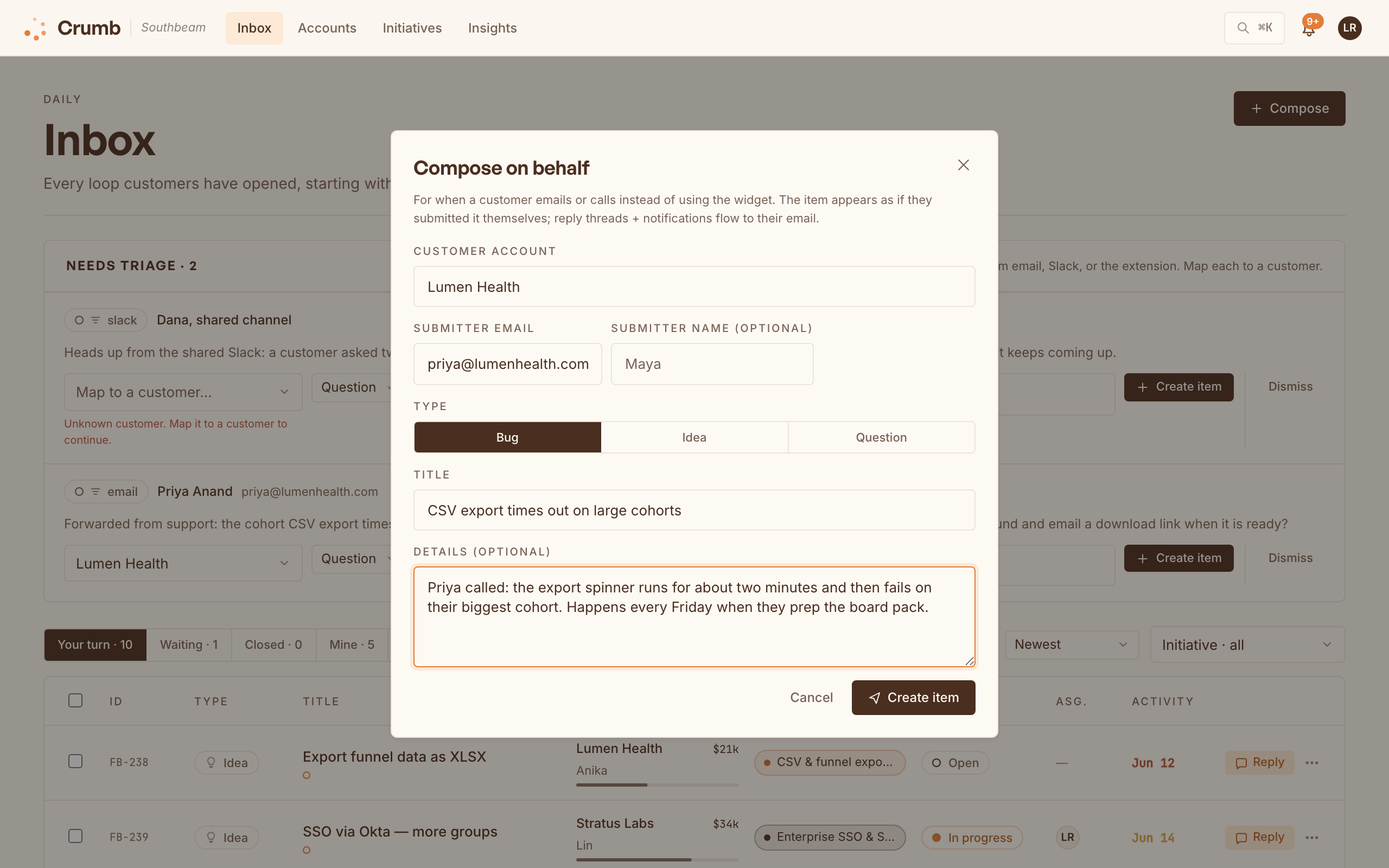
Compose on behalf
Customer emailed or called instead of using the widget? Hit Compose in the inbox and log it for them. The item appears as if they submitted it themselves, so replies and notifications flow to their email, and on Team and up it gets an initiative suggestion like anything else.
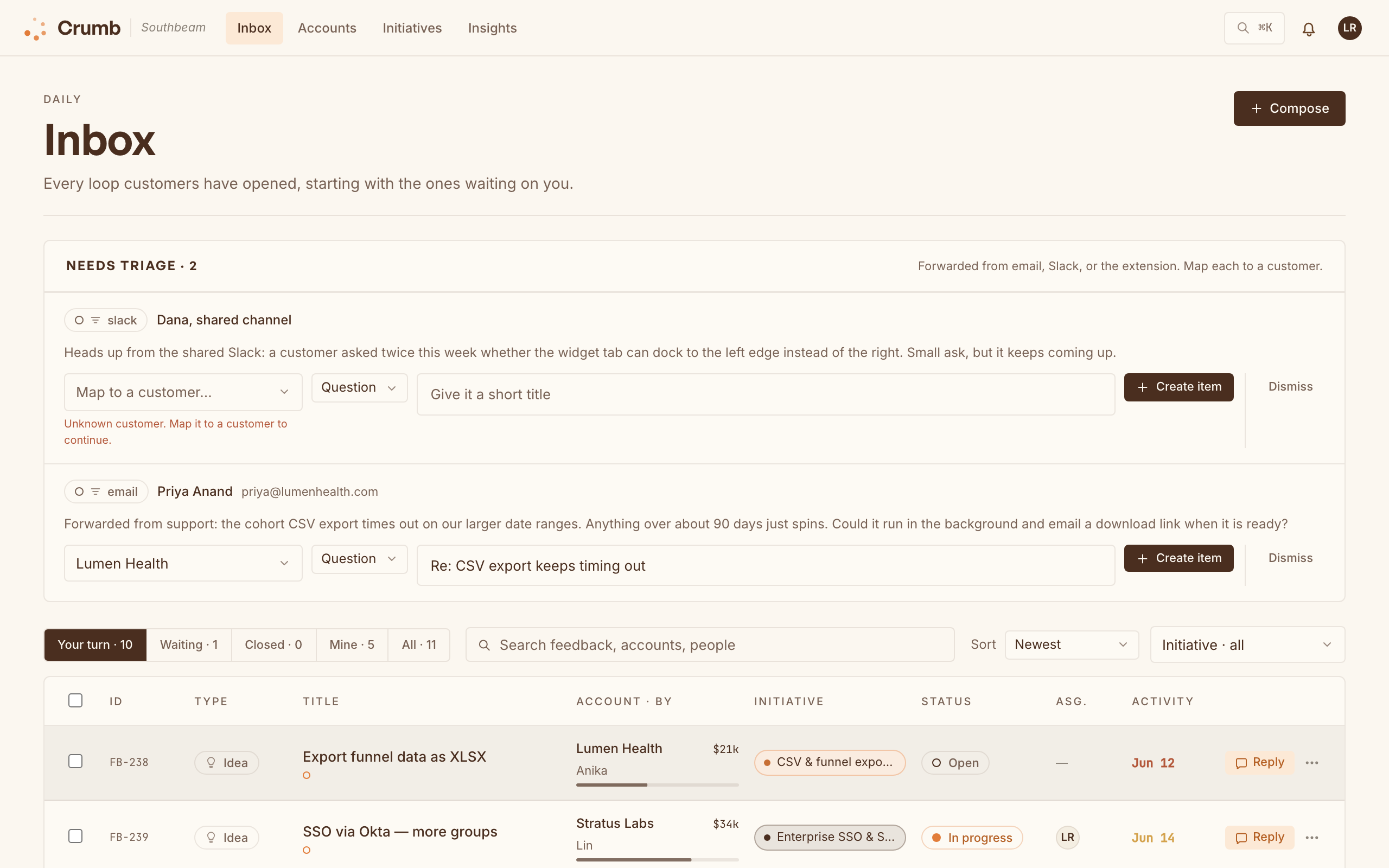
Needs triage
Forwarded email, extension captures, and anything a feedback connector pulls in that needs a human wait in a Needs triage card at the top of your inbox, with an AI-suggested account match when we can guess one (Team and up). Each one shows where it came from. Map it to a customer and it becomes a regular item; dismiss it if it's noise. Because that customer never opted into Crumb, they aren't emailed automatically about it; follow up where the feedback came from.
Want another system to know when something is waiting? The capture.created webhook fires for each capture that needs review, with its source: email, slack, extension, or the connector's name.